The limits are generous but real. You can run up to 300 exports in a rolling 24-hour window, three at a time. CSV and XLSX files split into a zip past 1,000,000 rows, and XLS files past 65,535. Download links expire after 30 days.
The caveat that catches people is activity history. HubSpot’s help centre says contact activities such as calls and notes are not part of a record export. It points to other routes: individual contact data exports, activity reports or the engagements API. If the sales team cares most about call notes, test that path first, because it decides whether you script against the API.
Rate limits during the load
Any script you write runs into the limits in HubSpot’s usage guidelines, which vary by tier. For a privately distributed app the burst limit is 100 requests per 10 seconds on Free and Starter, and 190 on Professional and Enterprise. The daily allowance is shared across every app in the account: 250,000 on Free and Starter, 625,000 on Professional and 1,000,000 on Enterprise. An API limit increase add-on lifts the burst to 250 and adds 1,000,000 a day.
Once you pass a limit, every call returns a 429 until it resets. The daily count resets at midnight in the account’s time zone. A migration script needs a throttle, a retry rule and enough headroom for the integrations that keep running.
Map objects before you map fields
The two systems do not share a data model, so decide how objects correspond before touching a field. The usual friction is leads. Salesforce keeps Lead as its own object, apart from Contact and Account, until a rep converts it. HubSpot centres on Contact, with Company and Deal around it. Its Leads object, on Sales Hub Professional and Enterprise, cannot exist alone: each lead hangs off a contact or a company. A custom CRM can follow neither. Draw your own schema deliberately rather than copying the tool you are leaving.
| Salesforce object | HubSpot object | In a custom CRM schema |
|---|---|---|
| Account | Company | An organisations table, one row per legal customer |
| Contact | Contact | A people table with a foreign key to the organisation |
| Lead | Contact with a lifecycle stage, or a Lead tied to a contact | A person plus a status, or a separate leads table if conversion matters to you |
| Opportunity | Deal | Opportunities, with a stage history table |
| Task, Event | Task, Meeting | One activities table with a type column |
| Note, attachments | Note, file on the record | Notes table, files in object storage linked by record ID |
| User | User and owner | Users table; every owner field points here |
| Custom object (__c) | Custom object, where the plan allows it | Its own table, modelled on its real use |
Fields, picklists and the two that are never optional
Keep a mapping sheet with one row per source field: the target field, the transformation and the person who approved it. Picklists get their own tab, since source values are often looser than the target. A Salesforce multi-select picklist stores several values in one cell, separated by semicolons, and not every destination accepts that shape. Booleans, currencies and time zones are the other usual casualties. Each deserves a line in the sheet rather than a hope.
Carry the source system’s record ID into every migrated record, in a field of its own. It lets you reconcile, re-run a failed batch without duplicates, and answer a rep who says one account looks wrong. The second fixed rule is owners. HubSpot’s import can assign owners by name, email or internal value, and its guide recommends email or the internal value wherever two users share a name. Use email everywhere and the question never comes up.
Load parents before children
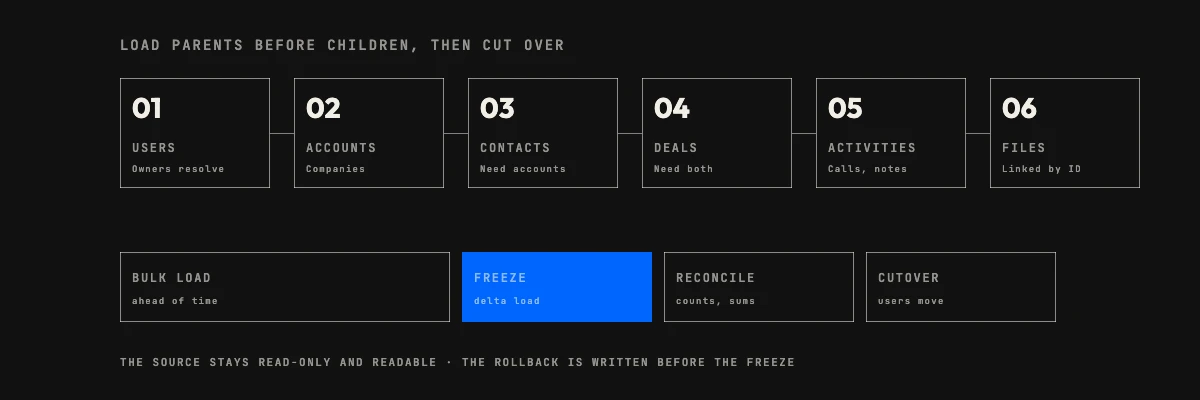
Relationships dictate the order. A contact cannot attach to an account that does not exist yet, and a deal needs both. Create the users first so owners resolve. Then come accounts, contacts, and opportunities or deals. Activities, notes and files, which hang off all of them, go last.
Load order, with the source ID carried through each step, is what keeps associations intact. In HubSpot imports, an association in a single file needs a unique identifier for both records in each row. Without identifiers the import creates duplicates. HubSpot accepts the Record ID, a custom unique property, email for contacts and domain name for companies. Set the property that holds your legacy ID to require unique values, and it can be that identifier.
Volume limits shape the batches. HubSpot’s import allows files up to 512 MB and 1,048,576 rows on paid plans. It also allows 10,000,000 rows in a rolling 24 hours, or 80,000,000 through the imports API, and three imports at once, of which only two may exceed 10,000 rows. On Salesforce the equivalent limits belong to Bulk API 2.0 and are listed in the same quick reference.
Deduplicate before loading, not after. Merging two contacts that each already have deals and notes is far harder in the destination. A match on normalised email or domain in a staging table is easy by comparison. Decide the survivor rule in advance (most recent activity, most complete record, oldest account) and write it down.
What does not move cleanly
Three categories need their own handling. Try each on the sample before the full run.
- Activity history. HubSpot imports calls, emails, meetings, notes and tasks, each with required fields: call notes for a call, an email body and direction for an email, a description with start and end times for a meeting. Legacy activities rarely carry all of those, so expect a clean-up pass. If no activity date is supplied, HubSpot uses the import time, which flattens years of history into one day.
- Files and attachments. Treat them as a separate workstream, with their own count and size check. Keep the link between file and record in the source ID, not the filename.
- Created dates and audit fields. Many destinations stamp their own creation date on import. If reporting depends on how old an account is, store the original created date, last-modified date and creator in dedicated fields. Salesforce can write the native fields on insert, but only after an admin enables the Set Audit Fields upon Record Creation permission, so arrange that before the load.
Automations do not migrate with the data. Workflows, validation rules, assignment rules and email sequences are rebuilt in the destination. List them in the inventory beside the objects, so nobody discovers at go-live that lead routing stopped.
Test a sample, then reconcile the CRM data migration
Do a full rehearsal on a representative slice. Take a few hundred accounts with all their contacts, deals, activities and files, and include the ugly ones: the account with two thousand contacts, the contact with no email, the deal whose owner left. Then open ten accounts and compare them with the source side by side, the way a rep would.
After the full load, a CRM data migration is finished only when the numbers agree. Use this checklist per object, and keep the results in a sheet someone signs:
- Source record count equals destination record count plus the number you deliberately excluded, with the exclusions listed.
- Every destination record has its source ID, and no source ID appears twice.
- Associations match on a sample and on the largest accounts: contacts per account, deals per account, deals per contact.
- Owners: the count per owner matches, and no record belongs to a placeholder user.
- Money and dates: open pipeline value and the closed-won total match, and created dates fall inside expected ranges.
- Picklists: no blank values where the source had one, and no new values created by accident.
- Activities and files: counts by type match, and a random sample of files opens.
- Rejected rows: every error file from every import is read, explained, then fixed or accepted in writing.
Counts are a floor, not proof. They catch lost rows but not wrong ones, so pair them with the sample review and the sums.
Cutover, freeze window and rollback
Pick the cutover window for the CRM data migration with the sales team, not around them, and keep it short. What works is a bulk load ahead of time, then a freeze. Users stop editing the source at an agreed hour. A delta export picks up everything changed since the bulk load, and that delta is loaded. The checklist runs again, and users move over. With the bulk load done and a small delta, the freeze can be a few hours, which is why the delta gets its own rehearsal.
Write the rollback before you need it. In practice the source stays untouched and readable, and integrations stay pointed at it until the checklist passes. A named person has the authority to call the cutover off. Rolling back after a week of live use is a different problem, because new records exist only in the destination. Decide in advance how long a rollback stays realistic. After that point, fix forward.
After go-live, spend two weeks watching. Look for duplicates created by reconnected forms and integrations, missing automations, reports that moved, and reps who cannot find a field. Keep the source read-only for a quarter, then archive it with the original export under the same access rules.
Personal data during a CRM data migration
A migration is a rare chance to move less personal data than you hold today. Move what you have a reason to keep. Contacts who opted out should arrive as suppressed, not gone, or the new system will happily email them. A contact who asked to be deleted is a different case, so agree with your counsel what, if anything, you keep to honour that request. Consent and source fields travel with the contact, along with the date of consent where you record it. A subscription status without its history is hard to defend later.
Exports are copies of customer data. Restrict who can download them, keep them out of shared drives and email, and delete the working copies when the project closes. What your jurisdiction requires is a question for your lawyer or data protection officer. The engineering job is making sure these fields exist and survive.

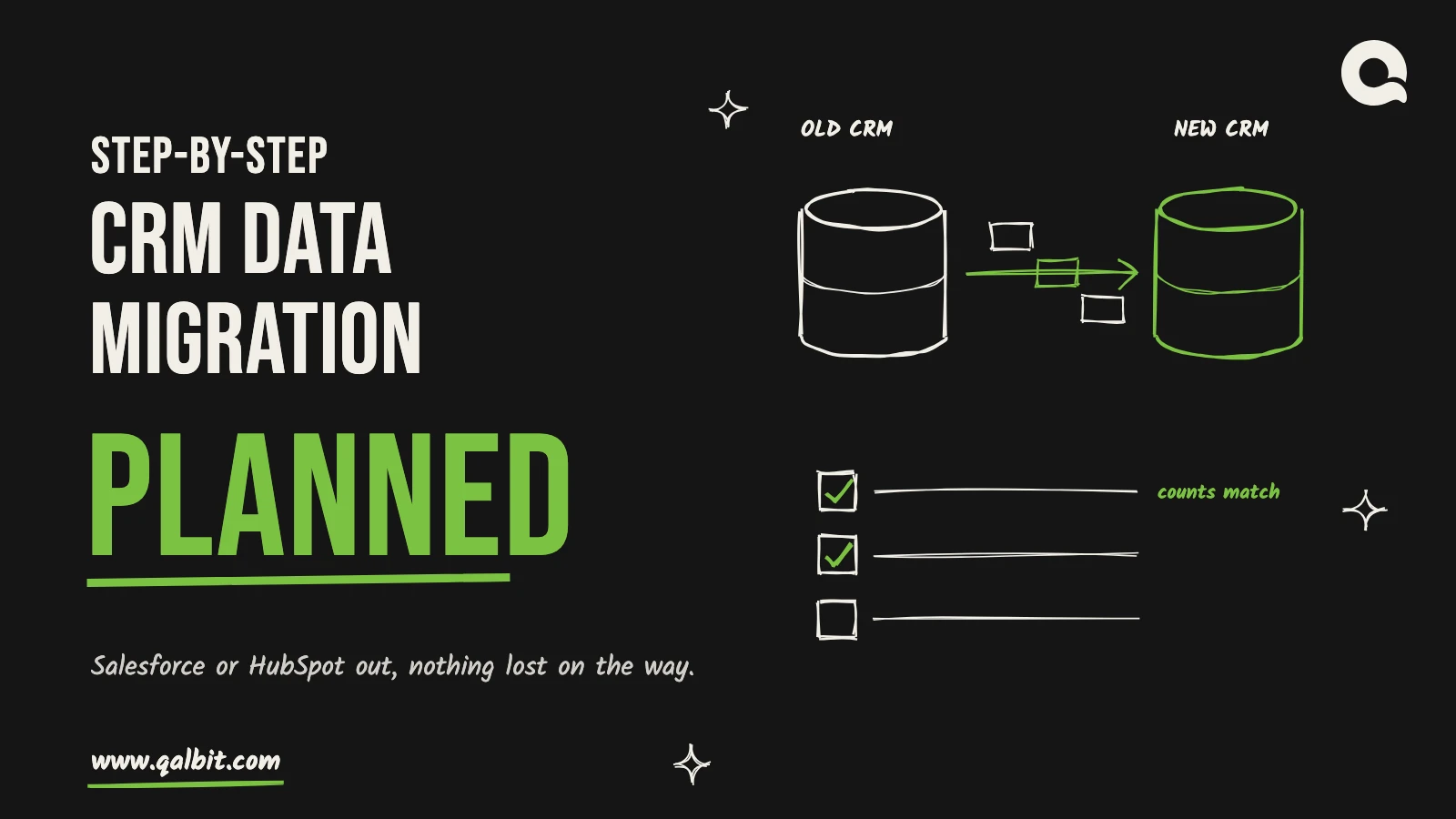
Run a CRM data migration in a fixed order: inventory the objects, export everything, map fields, load parents before children, reconcile, then cut over. Skipping a step rarely shows up on the day. It shows up three weeks later, when a rep opens an account and finds its contacts, deals or history missing. This plan works with Salesforce or HubSpot as the source. The destination can be the other one, or a CRM built to your own schema.
We build CRMs through our custom CRM development work, and every build starts with somebody else’s data arriving in it. Moving at all is another question, and our posts on Custom CRM Development Cost in 2026 and custom CRM against Salesforce, HubSpot and Zoho answer it. This one assumes the answer is yes.
CRM data migration starts with an inventory, not an export
Before anything is exported, write down what exists. For each object, record four things: the record count, the fields anyone actually fills in, the owner, and whether the object is moving at all. Objects here means accounts, contacts, leads, opportunities or deals, tasks, notes, files, users and custom objects. Plenty of orgs carry thousands of leads nobody has touched in years, and moving them costs time on every later step.
Count fields by use, not by existence. A Salesforce org can hold hundreds of custom fields on one object while a dozen carry real values. Run a fill-rate count per field, and put anything below a threshold you choose on a review list. Picklists need the same treatment. List every value in use, because old values that survive in historic records are the ones that break an import into a tidier destination.
Two decisions belong in the inventory because they change everything downstream. First, how much history comes across: closed deals from the last three years, or all of them. Second, whether the old system stays readable after cutover. A read-only source for a quarter is cheap insurance. It also lets you leave rarely used history behind without anyone feeling it.
Getting the data out of Salesforce
Salesforce gives you two routes, and a serious migration uses both. The first is the Data Export Service, found in Setup. It packages your data as CSV files in a zip, with options to include images, documents and attachments. Weekly exports are available in Enterprise, Performance and Unlimited editions. Professional and Developer editions can export every 29 days or on a monthly schedule. Salesforce’s Trailhead module on data export notes that the zip files are deleted 48 hours after the email is sent. Download them the day they arrive and checksum the copies.
The export service makes a good full backup and a poor migration tool. You get raw tables, with no say over which rows or columns come out. For the migration itself, use Data Loader or the Bulk API and pull exactly what you need with a SOQL query, object by object. Run a test export in a sandbox first. Decide on soft-deleted records deliberately: whether they come across is a choice to make, not a default to inherit.
Plan around the API allowance too. Salesforce’s limits and allocations quick reference (last updated September 2026) gives Enterprise, Unlimited and Performance orgs, and Professional orgs with API access, 100,000 requests per 24 hours plus an amount for each user licence. On Enterprise, a full Salesforce licence adds 1,000. The REST, SOAP and Bulk APIs all draw on that one pool, so a migration competes with your integrations. Bulk API 2.0 moves records in jobs instead of one request at a time, which makes it the sensible choice for large objects. Before the first run, read your org’s own figure from the REST API’s limits resource or the API Usage section of System Overview in Setup, because purchased add-ons change it.
Getting the data out of HubSpot
HubSpot exports are friendlier but have their own edges. Anyone with the Export permission can export contacts, companies, deals, tickets and other objects as CSV, XLS or XLSX. As HubSpot’s export guide shows, you choose the properties in the current view, all properties, or all properties and associations. For a migration take the last one, in CSV. Association columns hold up to 1,000 associated record IDs by default, and the all-associated-records option is CSV only.